Your account
Open Profile from the menu at the bottom of the sidebar.
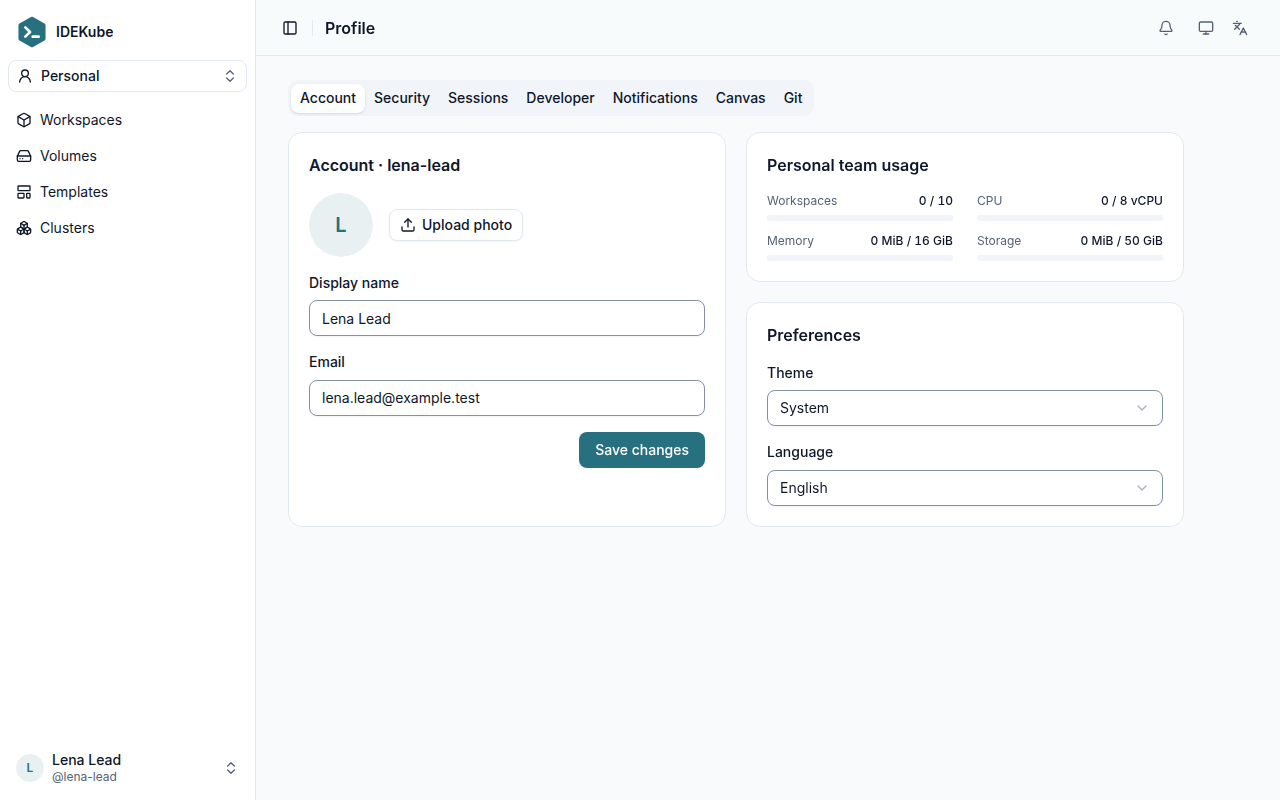
Account
Set your display name, email address and photo. A photo is cropped to a square and stored as a 256-pixel PNG; PNG, JPEG, GIF and WebP up to 4 MiB are accepted.
A forgotten password
Forgot your password? on the sign-in page sends a link to set a new one to the email address of the account you name, by its username or that address. The link works once, within half an hour; setting the password signs the account out everywhere. Only accounts that sign in with a password here have one to forget: an account made through a sign-in provider signs in there. The link is offered once an administrator set a mail server and the platform's address, unless they turned this email off.
Two-step verification
On the Security tab you can protect password sign-in with a second factor. Once one is set up, signing in with your password also asks for:
- a six-digit code from an authenticator app (1Password, Google Authenticator, Authy…): choose Set up, scan the QR code and enter the code it shows; or
- a passkey or security key: Touch ID, Windows Hello, your phone, or a hardware key. Add as many as you like and give each a name.
With your first factor you receive ten recovery codes. Keep them somewhere safe: each one signs you in once when your other factors are not at hand. You can make new ones at any time, which invalidates the old ones. Setting up a factor asks you to confirm who you are; turning one off, or making new codes, asks for your password, or, on an account without one, to confirm who you are.
If you lose every factor, an administrator can reset your two-step verification.
Signing in through an identity provider does not ask for these factors: the provider protects that sign-in.
Sign-in providers
When the platform offers identity providers, the Security tab lists them. Link one to sign in with it as well; Unlink removes it, unless it is your only way to sign in.
Sessions
The Sessions tab lists the browsers and devices where you are signed in, with their address and when they were last active. End any you do not recognise, or sign out everywhere else at once. Changing your password does the latter automatically.
Several accounts
A browser stays signed in to several accounts at once. Sign in to another account in the menu under your name sets the account in use aside and signs in to another; the same menu, and the sign-in page, then switch among them. A switch applies to every tab of the browser. Signing out of one account goes on with another still signed in, if any.
Confirming it is you
What gives another way into your account, or changes where its password can be reset, first asks you to confirm who you are: creating an API token or authorizing a device, adding an SSH key, setting up an authenticator app or a passkey, linking or unlinking a sign-in provider, changing your email address, and setting a password on an account that has none. You confirm with your password, an authenticator or recovery code, a passkey, or, for an account that signs in only through an identity provider, by signing in there again. Once confirmed, the browser session is not asked again for 10 minutes. An API token can do none of these, nor change your password, your two-step verification or your sessions (reauth_required): only a signed-in session can. Scripts confirm with POST /v1/auth/confirm.
API tokens
For scripts, the idk command line and AI agents, create a token on the Developer tab and send it as Authorization: Bearer idk_…. It is shown once, and works until you delete it or it expires: after 90 days unless you change Expires in, never when you empty it.
curl -H "Authorization: Bearer $IDEKUBE_TOKEN" https://idekube.example.org/v1/workspaces
Access says what the token may do:
- Full access: all you may do, with all your permissions.
- Read-only: read every area below, change nothing, and use none of your permissions.
- Custom scopes: No access, Read or Read & write for each area, and which of your permissions it keeps, under Administrative permissions. A token without a permission cannot use it: one that saves templates needs
template:author, one that makes teamsteam:create.
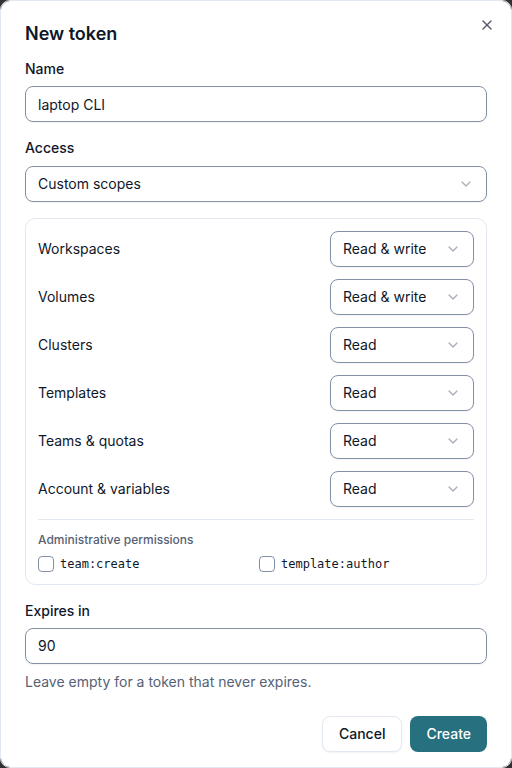
| Area | Scopes | What it covers |
|---|---|---|
| Workspaces | workspaces:read, workspaces:write | Workspaces, their files, tasks and SSH, and the activities of the Canvas plugin. |
| Volumes | volumes:read, volumes:write | Volumes. |
| Clusters | clusters:read, clusters:write | Clusters. |
| Templates | templates:read, templates:write | Templates, and checking a template's source. |
| Teams & quotas | teams:read, teams:write | Teams, their members and invitations, plans, and requests for more. |
| Account & variables | account:read, account:write | Your profile and variables, notifications, and your Git and LMS connections. |
:write includes :read. Reading variables, yours or a workspace's, takes write access to their area, as it shows their values. Reaching a workspace's files or SSH takes Read & write for workspaces. A request beyond the token's access is refused with insufficient_scope. The audit records of what a token did carry its start, as the list shows it, in detail.token.
SSH keys
Add your public SSH keys on the Developer tab, one line each, as in ~/.ssh/id_ed25519.pub. Ed25519 and ECDSA keys, including security-key variants, and RSA keys of at least 2048 bits are accepted. Your workspaces accept these keys within seconds of a change, without restarting.
Environment variables
Variables on the Developer tab, such as API keys, are set in every workspace you create in your personal team. A workspace of a shared team does not get them, because the team's administrators may open it; set variables on the workspace itself instead. See Workspaces for when a change takes effect.
- Names are letters, digits and underscores, not starting with a digit. Names starting with
IDEKUBE_orLD_are reserved. - A value is one line of at most 32 KiB; encode anything with line breaks, for example in base64. Values are stored encrypted with the platform's key.
- At most 100 variables per profile and per workspace, of 256 KiB in all.