Workspaces
A workspace is your development environment: a container created from a template, with its own URL and a home volume that survives restarts.
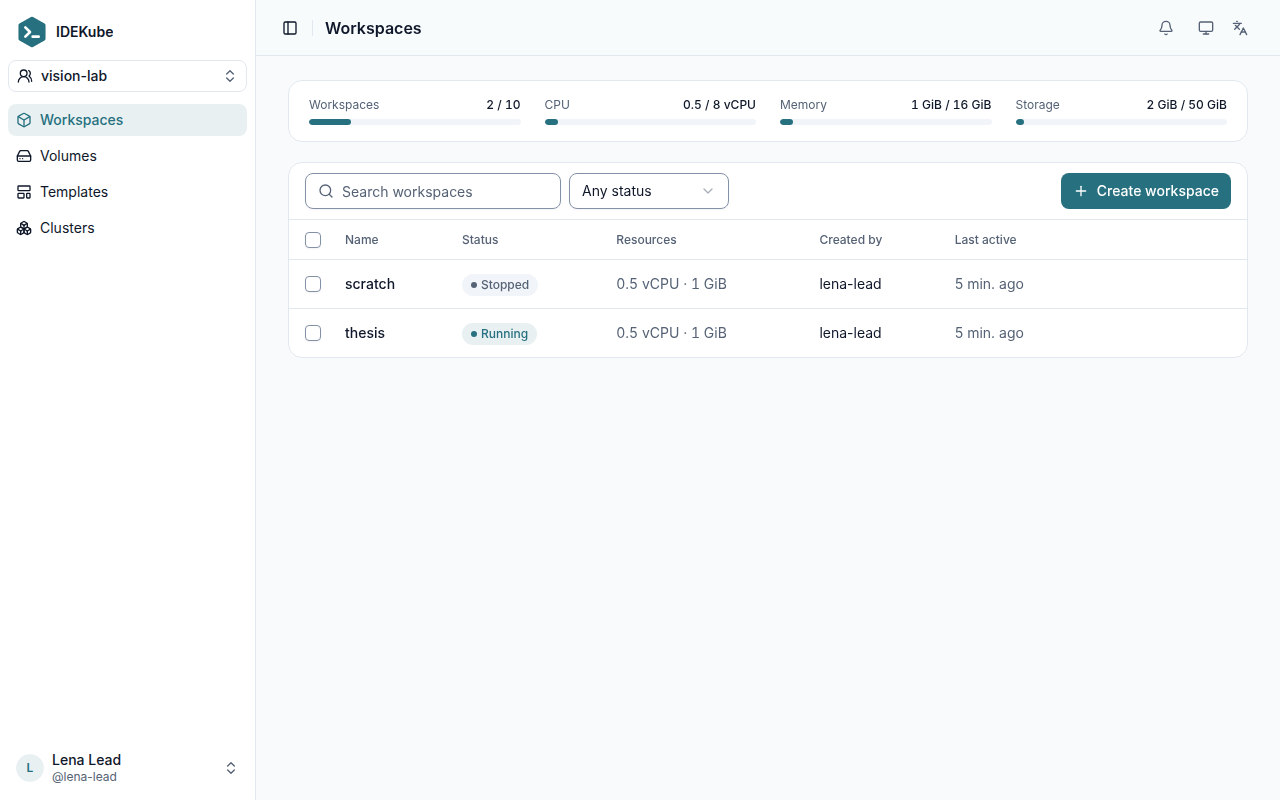
The Workspaces page lists the workspaces of the team chosen in the sidebar, under what the team uses of its quota.
Create
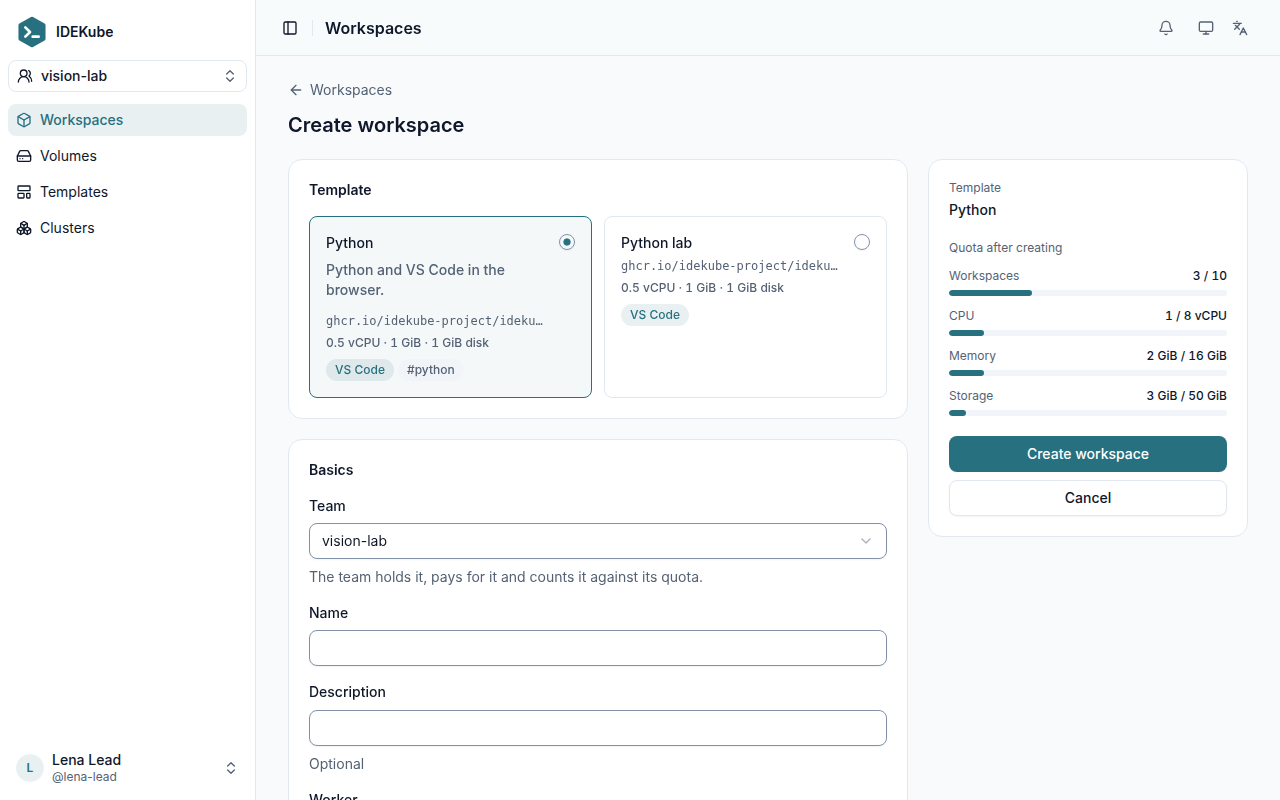
Choose Create workspace, a template and a name. Optionally override the template's defaults:
- CPU (millicores), memory (MiB), and one or more accelerator classes (GPUs or NPUs) with their quantities: the classes the template names, or any the worker offers when it names none, showing per-worker availability;
- the size of
/dev/shm, which is memory and counts against the memory limit; - the size and the class of the home volume;
- volumes of the team to mount from the start;
- the worker to run it on, when there are several: it stays there, and only mounts volumes of that worker, so choosing a volume to mount also decides the worker;
- the idle timeout;
- whether to start it immediately (the default).
The request is checked against your quota. It belongs to the team chosen in the sidebar, whose current usage is shown in the UI and returned by GET /v1/teams/{team_id}. The form shows what the team would use once the workspace is created.
Inside the workspace, IDEKUBE_WORKSPACE_ID and IDEKUBE_USER are set in the environment. CPU and memory are hard limits.
Phases
| Phase | Meaning |
|---|---|
pending | Just created, not yet handled. Normally passes within moments. |
starting | The container is being scheduled, pulled or started. The status message says what it is waiting for. A workspace that does not run within the start timeout, 15 minutes unless an administrator set otherwise, is stopped, frees its quota, and you are told why. |
running | The workspace is ready and reachable. |
stopping | The container is being shut down. |
stopped | Nothing runs and only the volumes remain in the cluster. CPU, memory and GPU are released from your team's quota. |
failed | The workspace cannot start without intervention, for example because the image cannot be pulled or the container keeps crashing. The status message carries the reason. |
deleting | The workspace is being removed. |
A failed workspace is retried automatically and returns to running once the cause is gone. A workspace can be deleted from any phase.
Open
Opening a workspace from the UI takes you to <id>.<workspace domain> and signs you in to it. The session on that workspace lasts 12 hours by default; after that, or if you visit the address directly without a session, you are sent through the platform's sign-in and back to the page you asked for.
You, the admins and owners of its team, and administrators with workspace:manage or team:manage can open your workspace. Operators with workspace:maintain can inspect status and usage and start, stop or delete workspaces across teams, but cannot open them, connect over SSH, access files or tasks, read or edit environment variables, or change workspace configuration.
The workspace page lists the template's endpoints, such as VS Code at /coder/ or a desktop at /vnc/, and opens each one directly.
Connect over SSH
When the template has an SSH endpoint, the workspace runs an SSH server reached through a WebSocket at <id>.<workspace domain>/ssh. It accepts the SSH keys on your profile; one you add or remove counts within seconds, without a restart. The platform's sign-in does not apply here: your key is what lets you in.
Install websocat and add to ~/.ssh/config (the workspace page shows this block with your workspace's address):
Host idekube-abc123
  User idekube
  ProxyCommand websocat --binary wss://abc123.ws.example.org/ssh/
Then ssh idekube-abc123, or open the host from VS Code's Remote-SSH. The idk command line connects without websocat, and writes such hosts for all your workspaces with idk config-ssh.
Files and tasks
A running workspace's panel lists its volumes and lets you browse them, upload files (several at once; an existing file is replaced only once you confirm), make folders, download a file, or a folder as a zip archive, and delete. Files you upload belong to the workspace's user. Transfers go straight between your browser and the workspace, not through the platform's servers, so their size is only limited by the volume.
When the template has tasks, the panel also shows each one: pending, running, done, or failed with its exit status, and the end of its output.
Variables
A workspace gets the environment variables of your profile when it belongs to your personal team, and its own variables, set in its panel or on its edit page, which win over yours. They save immediately and reach every terminal and SSH session opened after a change, without a restart; services that started with the workspace, such as notebook kernels and the editor's tasks, see a change after the workspace restarts. A value with both kinds of quotes, a quote at either end, or a space followed by # or ; reaches terminals but not those services, whose configuration cannot hold it.
Stop, start and idle stop
Stopping keeps the workspace and all its volumes; only the container goes away. Anything outside a volume is lost, so keep your work under the home directory or another mounted volume.
Starting checks your quota again and picks up the revision its template publishes now, unless you turned that off in its settings or its template's people require a revision; so does changing a stopped workspace. The workspace page shows which revision it runs.
A workspace is stopped automatically when it has seen too little traffic through the platform for longer than its idle timeout. Typing in an editor or a terminal, loading pages and working over SSH all count; an open tab nobody looks at does not. The default timeout and the longest one allowed are set by the administrator (one hour and no limit unless changed); 0 disables it where no limit applies. A shared team's admins may set the team's own default and longest timeout, up to a ceiling the administrator sets, on the team's Settings tab (a personal team keeps the platform's); a longest timeout lowered there applies at once to the workspaces that run. Activity is tracked to the minute. A long-running job does not count as activity unless something keeps talking to the workspace.
Shared teams can also enable strict interactive idle detection (ignoring background sidecar traffic and tracking active browser/SSH connections through the gateway), set a disconnect timeout that reclaims a workspace after all active connections close, and set a maximum continuous runtime cap from when a workspace starts. When a workspace is stopped for inactivity, disconnect, or reaching its maximum runtime, its creator is notified.
The workspace detail drawer shows the workspace's ID, description, effective idle and runtime limits, last activity, uptime, and a live countdown to automatic reclamation while the workspace is running.
Change resources and live settings
CPU, memory, accelerators, shared memory, bandwidth, the idle timeout, mounts, the name, the description and the template can be changed at any time on the edit page.
- Changing CPU, memory, accelerators, shared memory, bandwidth, mounts or the template of a running workspace restarts it with the new values.
- An increase is checked against your quota when the workspace is running, otherwise when it is next started.
- Environment variables, network rules and Git repositories (including choosing or editing each repository's target directory under
$HOMEor a mounted volume) are also available on the edit page and save immediately without restarting the workspace. - The home volume is resized on the Volumes page.
Delete
Deleting a workspace deletes the volumes made with it, its home among them, unless another workspace mounts them. Its other volumes are unmounted and kept.
Several at once
Select several workspaces to start, stop or delete them together. Each one succeeds or fails on its own, and the result lists both.