Volumes
A volume is a persistent disk. Its content survives stopping, restarting and resizing the workspace it is mounted in.
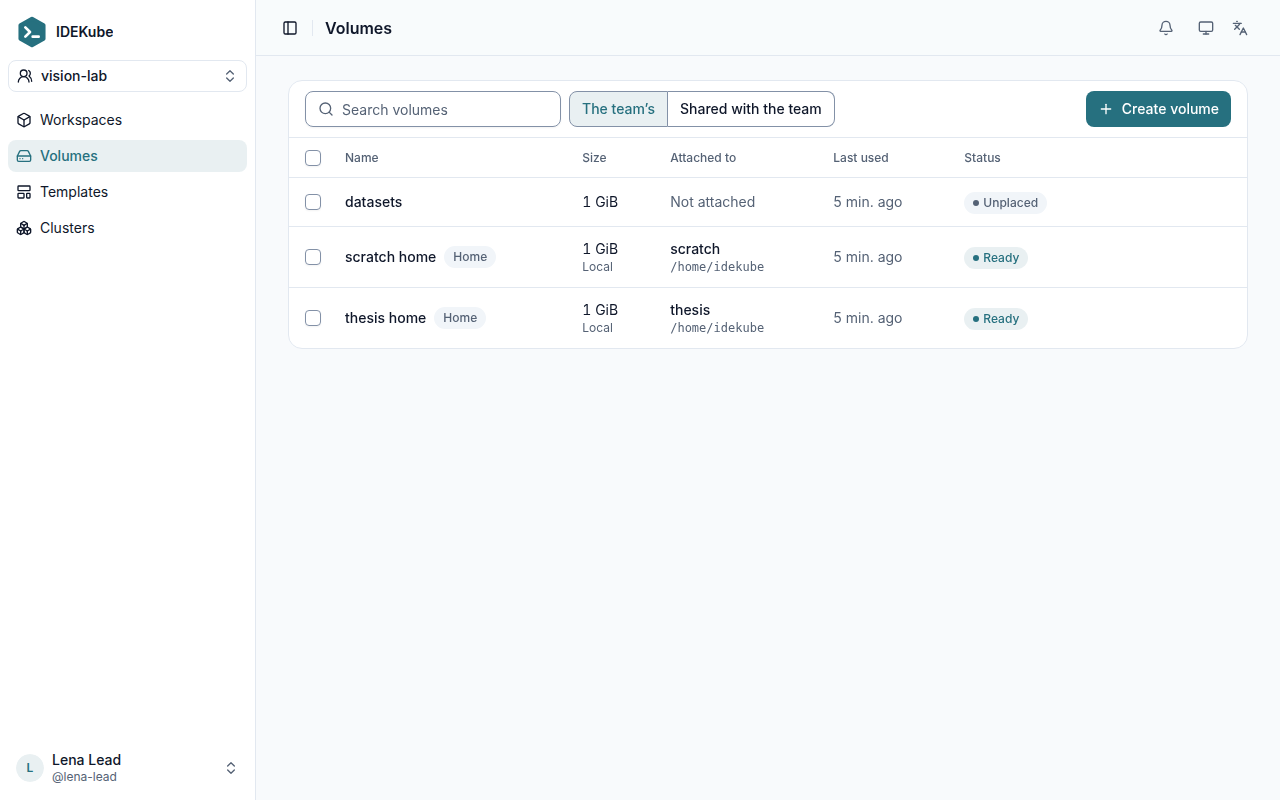
The Volumes page has three views for the team chosen in the sidebar: My team (active volumes you own or manage, home volumes included, plus volumes shared with your team), Shared with team (volumes shared with the team), and Archived (archived volumes, hidden from the active views by default). Administrators browsing All teams can switch between Active and Archived.
Home volumes
When a template defines a home path, each workspace created from it gets a home volume mounted there. It is named after the workspace, sized by the template and in the default class unless you chose otherwise, and deleted together with the workspace.
Additional volumes
Create a volume with a name, a size (at least 64 MiB) and a class. The administrator decides which classes there are, for example fast SSDs and cheaper bulk disks; the first is the default.
When there are several workers, you may choose the one it is made on; only workspaces on that worker can mount it. Leave it to When first mounted (the default) and the volume waits, unplaced, until a workspace mounts it: it then goes to that workspace's worker. An unplaced volume counts against your storage quota from the start, as its space is promised, but is charged for only once it is placed.
Mounting
A workspace mounts volumes of its team at mount paths:
- the path is absolute and contains no whitespace, for example
/data; - a path holds one volume of a workspace;
- a volume of an ordinary class is mounted by one workspace at a time;
- a volume of a shared class, marked so in the lists, is mounted by any number of workspaces on its worker at once, for example a dataset or a folder a team works on together;
- any mount may be read-only: the workspace, and the files panel, can read the volume but not change it.
Choose volumes when you create a workspace, or later in the Volumes section of its edit page, which shows everything the workspace mounts, its home volume included. Saving changes the whole set at once, which restarts a running workspace once: Kubernetes cannot add a disk to a running container. The workspace's panel lists what it mounts.
The volume list shows which workspaces mount each volume, and when a running workspace last used it.
Unmounting keeps the volume and its data. Unmounting a home volume turns it into an ordinary volume: it is no longer deleted with its workspace. A home volume another workspace still mounts when its own workspace is deleted is kept too.
Sharing
Volumes created in a team are private to their creator (and team admins) by default. From a volume's edit page, its creator or a team admin can share it with their own team or another team they belong to:
- Read-only (
ro) or Read-write (rw): available for volumes of a shared (ReadWriteMany) class. Members of the target team (not viewers) mount the volume directly, read-only when shared so. - Mount by clone (
clone): available for any volume class, including ordinary (ReadWriteOnce) volumes. When a member mounts the volume on a workspace, the platform creates a private copy for that workspace (charged to the workspace's team quota and deleted with the workspace) and waits for the copy to finish before starting the workspace. Cloning an ordinary (ReadWriteOnce) volume requires no running workspace to hold it open.
Shared volumes appear under Shared with team on the Volumes page. The source volume stays its team's, which is charged for it, and only its creator and that team's admins change, grow, archive or delete it. Changing a live share from read-write to read-only makes mounted workspaces follow as read-only; changing it to mount-by-clone or removing the share detaches it from workspaces that relied on the share (running workspaces restart to follow).
Cloning
Clone on the Volumes page makes a new volume on the same worker, filled with a copy of what a ready volume holds: one of your team's, or one shared with it. Choose the team it belongs to, which is charged for it, and its size, at least the original's. It is pending while it is copied, and a volume like any other once ready; what happens to the original afterwards does not touch it. A copy keeps files, directories and symbolic links with their modes and times, and makes everything owned by the workspaces' user.
Phases
| Phase | Meaning |
|---|---|
unbound | Unplaced: on no worker yet, until a workspace mounts it. Nothing exists in any cluster. |
pending | The disk is not provisioned yet. Some storage only provisions it when a workspace first uses it. |
ready | Provisioned. |
failed | The cluster refused or lost the disk; the status message carries the reason. |
lost | It held data, and its disk is gone from the cluster. The workspaces that mount it stop and do not start until it is recreated empty or no longer mounted; an administrator may also restore the disk, and the volume is ready again. |
deleting | Being removed. |
archiving | What it holds moves to the archive. |
archived | It is in the archive, which costs less, and holds no storage on its worker: Restore it to mount it again. |
restoring | What it held comes back from the archive; it is ready once it has. |
A volume no workspace runs with may be archived from its row, when the platform has an object store; administrators may have volumes unused for long archived on their own, and you are told when yours are. Archived volumes move to the Archived view. When you Restore one or more archived volumes, choose the target worker cluster (any online worker accepting volumes with a compatible storage class); restoring to a different worker detaches the volume from stopped workspaces on its previous worker.
Grow
A volume can grow but never shrink, and only in a class that allows it, on a worker whose storage does. The increase is checked against your storage quota.
A volume that grows stays pending until its disk holds the new size, and says so: some storage only finishes once the workspace that mounts it restarts. It is charged for what its disk holds meanwhile. When the storage refuses to grow it, the volume goes back to its earlier size, which frees the quota the growth took, and its status message says why.
Delete
Unmount a volume from every workspace before deleting it. Deleting is permanent; an unplaced volume goes at once.